Invoice Generator
Build a professional invoice with your business details, client information, invoice number, dates, multiple line items with quantity and price, tax and discount. Totals calculate automatically and you can print or save it as a PDF.
Line items
Privacy: your input is processed entirely in your browser and is never sent to our servers.
Visual example
How principal, rate and term become a monthly payment.
Principal
Amount you borrow
Interest rate
Cost of borrowing each year
Term
Months or years to repay
How to Use Invoice Generator
- 1Enter your business name and the client details.
- 2Set the invoice number and issue date.
- 3Add line items with a description, quantity and unit price.
- 4Set an optional tax percentage and discount, then print or save as PDF.
What This Tool Does
Small businesses and freelancers often need a simple, professional invoice without the overhead of accounting software. This generator calculates subtotals, tax, discounts and the final total in your browser, and prints a clean layout you can save as a PDF from the print dialog. Enter your business and client details, an invoice number and date, then add line items with a description, quantity and unit price, and the totals update automatically. A consistent invoice number sequence helps with reconciliation and tax records, and stating payment terms explicitly, such as payment due within 30 days, helps you get paid on time. Because everything runs locally, your financial details are not uploaded anywhere. See also the Quote Generator for estimates.
Understanding Invoice Generator
What every invoice should contain
A valid invoice needs: a unique invoice number, the invoice date and payment due date, your business name and address, the client name and address, a clear description of each item with quantity and unit price, the subtotal, any tax and discount, and the total due. Omitting any of these can delay payment or cause accounting problems for either party.
How the totals are calculated
The subtotal is the sum of each line item's quantity multiplied by its unit price. A discount, if applied as a percentage, is taken from the subtotal. Tax is then calculated on the discounted subtotal. The final total is subtotal minus discount plus tax. This order — discount before tax — matches how most small-business invoicing works.
Numbering invoices consistently
A predictable sequence such as INV-2025-001, INV-2025-002 makes reconciliation straightforward and flags gaps if an invoice goes missing. Avoid reusing numbers from cancelled invoices; instead mark them void and move on. Consistent numbering also satisfies accountants and tax authorities who expect a complete, logical series.
Getting paid on time
State payment terms explicitly — "Payment due within 30 days of invoice date" — and include your bank details or payment link. Send a polite reminder the day before the due date and the day after it passes; most late payments are administrative oversights, not refusals. For new clients, shorter 14-day terms reduce your exposure to slow payers.
Examples
Freelancer billing a client
Add three line items for design work, apply 20 percent tax, and print to PDF to send a clean, numbered invoice that the client's accounts team can approve quickly.
Small business monthly billing
Generate a numbered invoice for recurring services each month, keeping the sequence consistent so missing invoices are obvious at reconciliation.
Helpful Tips
- Use your browser's print to PDF option to save a copy.
- Keep a consistent invoice numbering sequence for your records.
- Apply a discount as a percentage before tax is calculated.
Frequently Asked Questions
Can I save the invoice as a PDF?
Yes. Use Print, then choose Save as PDF as the destination in the print dialog.
Is my data stored?
No. Everything stays in your browser; nothing is sent to a server.
How is tax applied?
Tax is a percentage applied to the subtotal after any discount.
Related Guides

Small Business Admin: Shortcuts That Actually Save Time
Templates, naming conventions, batching and a recurring admin block turn recurring paperwork from a daily interruption into a calm weekly task that no longer eats your evenings.
Mar 17, 2025 • 9 min read
Productivity Habits That Make Paperwork Painless
Admin work resists focus because it arrives in fragments. A fixed time slot, a handle-once rule, sensible defaults and a short weekly review turn recurring paperwork into a calm, bounded task.
Mar 31, 2025 • 9 min read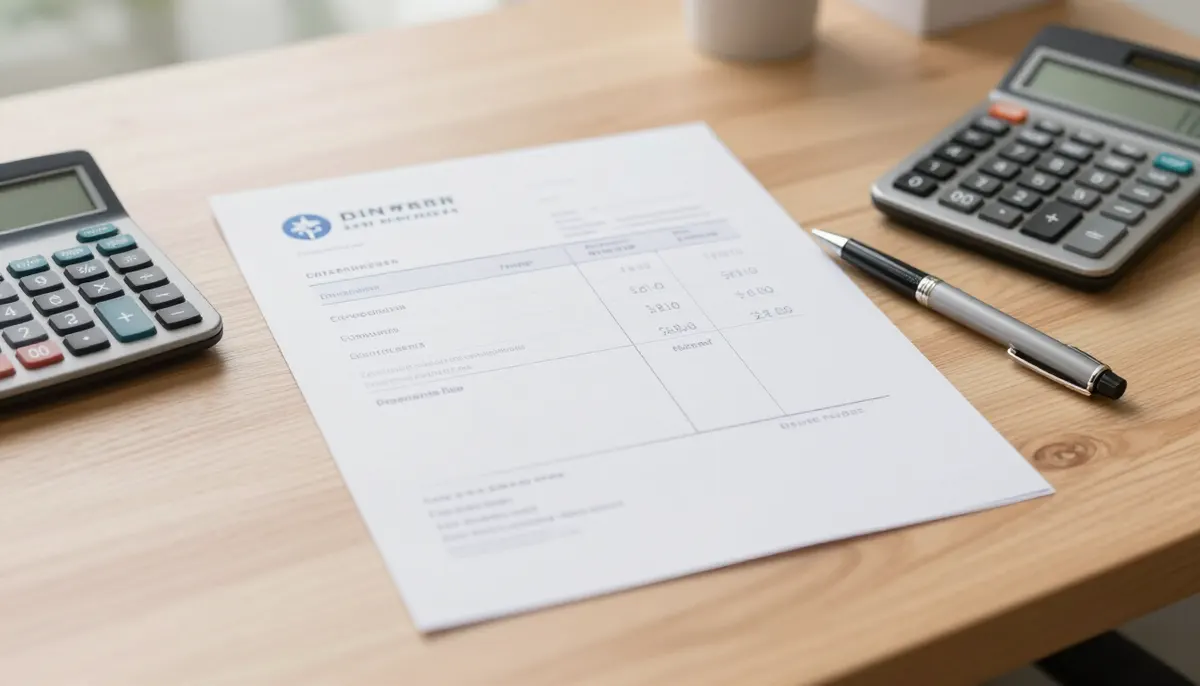
How to Write a Professional Invoice: What to Include and Why
A clear, well-structured invoice gets paid faster and avoids disputes. Here is exactly what to include, how to number invoices consistently, and what to do when payment is overdue.
Apr 28, 2025 • 5 min readRelated Tools
Quote / Estimate Generator
Create and print a clear quote or estimate.
Open toolProfit Margin Calculator
Calculate profit, margin and markup from cost and price.
Open toolBreak-Even Calculator
Find the sales volume where costs and revenue meet.
Open toolSales Tax Calculator
Add sales tax to a price and see the final total.
Open tool