Documents
Organising Digital Documents So You Can Find Them Later
March 3, 2025 • 9 min read
A simple naming and folder system that keeps contracts, receipts and forms findable years after you file them — with conventions, backups and a few habits that prevent the slow drift into chaos.
Name files by date first
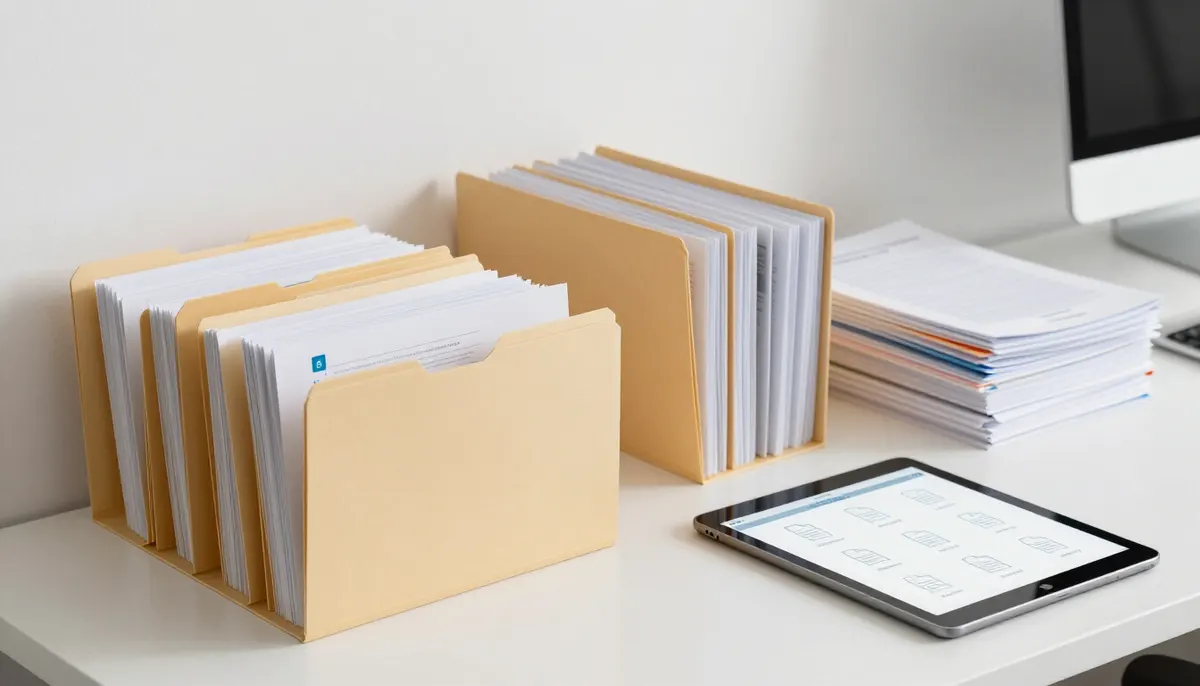
Starting a file name with the date in YYYY-MM-DD format makes folders sort chronologically by default, in every operating system, without any extra effort. When you sort by name, the most recent file appears at the bottom (or the top, in descending order), which is usually exactly what you want. Dates written as DD-MM-YYYY or MM-DD-YYYY sort incorrectly and are ambiguous across regions — 03/04/2025 means March to an American and April to a European, and neither sorts helpfully. The ISO format YYYY-MM-DD solves both problems at once: it sorts correctly everywhere and no one misreads it. Make it the first thing in every file name, followed by a short description, and your folders will organise themselves.
Describe the content, not the source
A file called scan_004.pdf tells you nothing in two years. A file called 2025-03-01-tenancy-agreement-signed.pdf tells you everything you need without opening it. The habit that makes documents findable is describing what they are, not where they came from or how they were produced. Avoid names like document_final_v2.pdf or download.pdf, because they accumulate and become indistinguishable. Include the document type, the parties or subject, and a status word where useful — signed, draft, expired. A descriptive name is a tiny investment when you save the file that saves a real search months later.
Keep folders shallow
Deep nesting hides documents. When you have to click through five folders to reach a file, you tend to stop filing things properly and leave them wherever is convenient, which defeats the system. Two levels — a year and a broad category, for example — is usually enough when file names are descriptive and search works well. Most operating systems now search file contents as well as names, so a flat structure with good file names is often faster to navigate than a deep tree you have to remember. Reserve deeper nesting for cases where it genuinely helps, such as separating projects within a client folder.
Separate originals from working copies
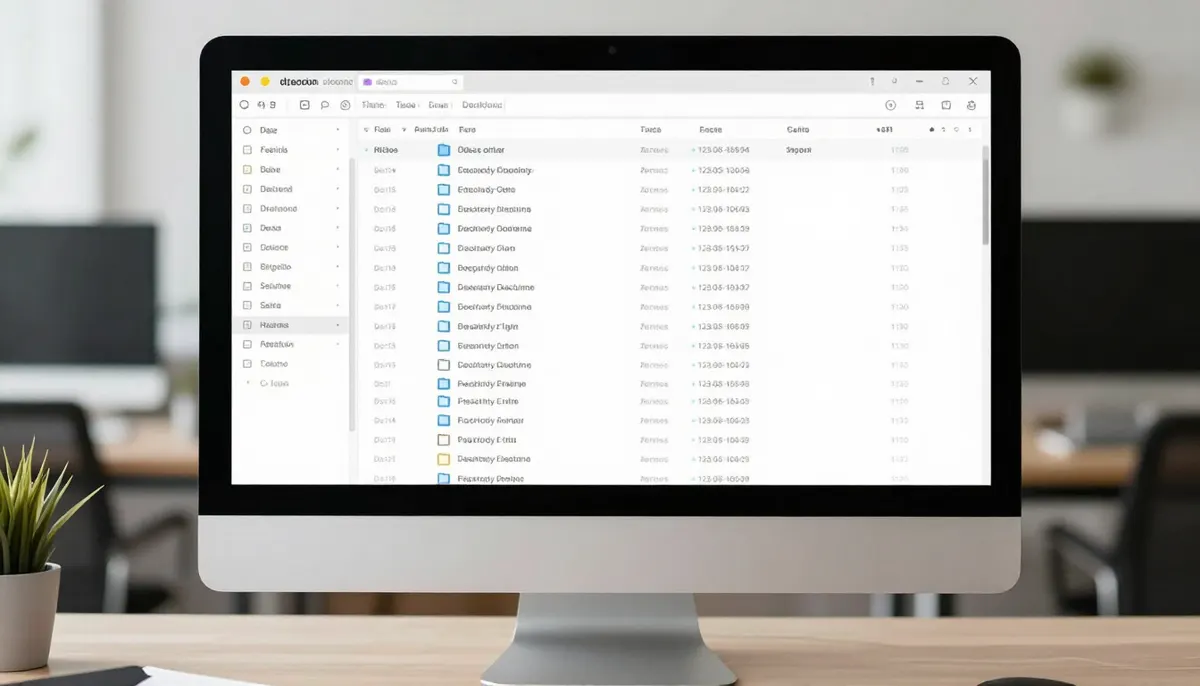
Keep signed and official documents in a read-only archive folder, and edit only duplicates. This prevents accidentally overwriting the version that matters — the signed contract, the final invoice, the submitted form — with a draft or a corrected copy. Treat the archive as a reference library: you go there to retrieve, not to change. Working copies live elsewhere, and only when a working copy is finalised does it graduate into the archive, usually with a clear name that shows it is the definitive version. This separation is the single most reliable way to avoid the sick feeling of realising you have destroyed the only copy of something important.
Back up in two places
One local copy and one cloud copy covers both hardware failure and account problems. A local backup on an external drive protects you when an internet service has an outage or locks you out; a cloud backup protects you when a local drive fails or is lost. Either alone leaves a single point of failure that will eventually catch you out. Check occasionally that the backup actually contains recent files — a backup that stopped running three months ago is a false sense of security. For truly critical documents, a third copy in a different location is worth the small extra effort.
Use a consistent naming convention
A naming convention only works if you apply it the same way every time. Decide once how you format dates, how you separate words (hyphens are safe; spaces and slashes can cause problems), and which abbreviations you use, then stick to it. Write the convention down in a short note you keep with your documents, so anyone else who helps you file things follows the same rules. Consistency is what makes a system searchable — a folder where every file follows the same pattern is easy to scan, while a folder of mixed styles forces you to open files to find the right one.
Add keywords for search
Even with good file names, search works better when the words you would naturally look for appear in the file or its metadata. For documents you refer to often, add a few keywords to the file name or a notes field — the client name, the project, the document type. Avoid stuffing so many keywords that the name becomes unreadable; three or four well-chosen terms are enough. The goal is that the search you would instinctively type six months later actually matches the file you saved.
Archive completed projects
Active folders clutter quickly when finished work stays mixed in with current tasks. Once a project is complete, move its documents into an archive folder for that year, keeping the same naming and structure. Archiving keeps your working folders focused on what you actually need now, while the archive remains searchable for the inevitable occasion when a past project resurfaces. Review your archive once a year to confirm it is still organised and that old files you no longer need are removed.
Common mistakes in document organisation
Relying on the Downloads folder as a filing system; naming files by version number instead of content; backing up to only one place and never checking it; keeping originals and drafts in the same folder so the wrong one gets edited; and building a folder structure so deep that you stop using it. Another common mistake is never archiving, so your active folders grow until finding anything takes longer than the task itself.
Handle email attachments promptly
Email attachments are where documents go to be forgotten. An invoice buried in an inbox from three months ago is an invoice you will struggle to find when you need it. Make a habit of saving any important attachment to your document system the day it arrives, naming it with your date-first convention, and then it is filed and searchable alongside everything else. If it needs a reply or an action, route it to your collection point rather than leaving it in the inbox. Treating the inbox as a temporary holding area rather than a filing system is one of the highest-leverage habits you can build.
Version important documents sensibly
When a document goes through several drafts — a contract being negotiated, a report being revised — version control prevents the classic mistake of editing the wrong copy or losing track of which version is current. Add a version number or date to the file name so each draft is distinguishable, and keep only the final version in your archive once the process is complete. During the revision, it is fine to keep a few drafts, but archive just the agreed final so your records stay clean. This is especially valuable for contracts, where knowing exactly which version was signed matters.
Frequently asked questions
How many folders should I have? As few as you can manage — two or three levels with descriptive file names beats a deep tree. Should I use tags or folders? Use whichever you will actually maintain; folders are simpler and work everywhere, tags are powerful but easy to forget. How often should I back up? Continuously if your tool supports it, otherwise weekly; the key is to check periodically that backups are current. What about paper documents? Scan them to PDF, name them with the date and content, and file them digitally so they are searchable alongside everything else.
Related Tools
Try these FillAtlas tools alongside this guide.
Related Guides
Working With PDFs: What Every Beginner Should Know
Why PDFs behave differently from documents, how form fields work, what to check before sending one, and how to combine, convert and shrink PDFs without losing what matters.
Mar 10, 2025 • 9 min read
How to Fill Out Online Forms Correctly the First Time
A practical checklist for completing online applications and government forms without rejections, resubmissions or lost work.
Feb 3, 2025 • 8 min read
How to Reduce Image File Size Without Sacrificing Quality
Large images slow down forms, emails and web pages. Here is how to shrink them using the right format, dimensions and compression, without a visible drop in quality.
Jun 16, 2025 • 6 min read